
Ledger Live App: Complete Guide to Features, Setup, Security, and Troubleshooting
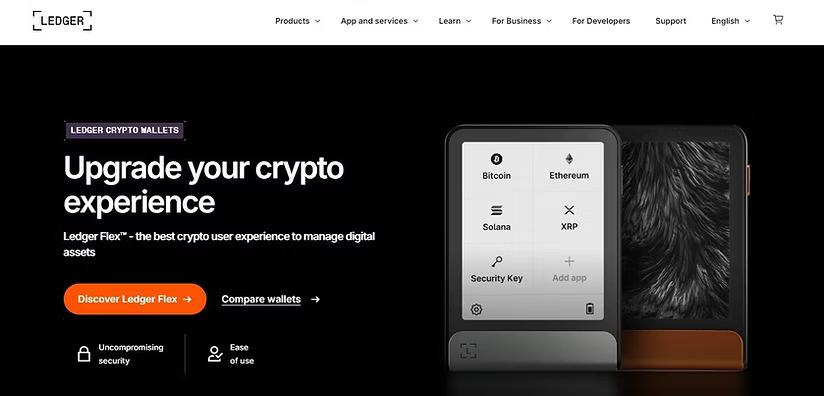
The Ledger Live App is Ledger’s companion software for managing cryptocurrency accounts with a Ledger hardware signer. It is available on desktop and mobile, allowing users to view portfolios, manage accounts, send and receive assets, swap, stake, and access supported Web3 services while private keys remain protected by the Ledger device.
Ledger Live App at a Glance
|
Feature |
What it provides |
|
Platforms |
Windows, macOS, Linux, iOS, and Android |
|
Portfolio management |
View balances, accounts, transaction history, and portfolio information |
|
Hardware integration |
Works with compatible Ledger hardware signers |
|
Transactions |
Send and receive supported crypto assets |
|
Buy and swap |
Access supported third-party providers and services |
|
Staking |
Stake supported assets through available services |
|
Web3 |
Connect with supported decentralized applications and Live Apps |
|
Private-key model |
Private keys remain protected by the Ledger hardware device |
|
Watch Mode |
Explore portfolio and some app functions without immediately connecting a signer |
|
Product name |
Ledger Wallet, formerly Ledger Live |
Ledger’s current download page lists desktop support for Windows, macOS, and Linux and mobile support for iOS and Android. Ledger also states that transaction services such as buying and swapping can involve third-party providers.
What Is the Ledger Live App?
The Ledger Live App was designed as the software companion to Ledger hardware wallets. Its role is different from the hardware itself: the application provides the interface for viewing accounts and preparing transactions, while the Ledger signer protects private keys and requires physical confirmation for transactions.
The current Ledger Wallet architecture therefore separates interface and transaction authorization. The application can display balances and prepare transactions, but the hardware signer is responsible for verifying and signing transactions.
This distinction matters when evaluating security. Installing the application does not mean that private keys are simply stored inside the computer or smartphone. Ledger describes its hardware signers as keeping private keys offline in a Secure Element, with transactions physically confirmed on the device.
The application also supports more than basic portfolio tracking. Depending on the asset and service, users can buy, swap, stake, connect to decentralized applications, and interact with other Web3 services.
Ledger Live App Features and Use Cases
The main functions can be grouped into several categories.
Portfolio Management
Users can monitor cryptocurrency balances across supported accounts and networks. Ledger describes its current application as supporting portfolio tracking, account management, transaction history, and market information.
Portfolio functionality is particularly useful for users holding multiple assets because the application consolidates account information into a single interface rather than requiring a separate interface for every supported asset.
Send and Receive Crypto
The application can be used to initiate supported cryptocurrency transfers. The transaction workflow normally involves entering or selecting the recipient, reviewing transaction information, and confirming the transaction on the connected Ledger device.
The hardware confirmation step is important because the signer is intended to provide an independent verification point before a transaction is authorized.
Buy and Swap
Ledger Wallet provides access to buying and swapping services through integrated providers. These services are not necessarily operated directly by Ledger; Ledger explicitly notes that crypto transaction services may be provided by third parties.
Consequently, users should distinguish between:
- The Ledger application interface
- The Ledger hardware signer
- The external provider processing a particular transaction
- The underlying blockchain network
Fees, supported assets, processing times, and verification requirements can therefore vary by service.
Staking
Supported assets can be staked through available services in the application. Availability depends on the cryptocurrency, network, account type, and current Ledger integrations.
Staking should not be interpreted as a universal feature for every cryptocurrency. Users should check the current asset-specific availability before initiating a staking transaction.
Web3 and DeFi
The application also functions as a gateway to supported decentralized applications and Web3 services. Ledger's developer documentation describes Live Apps as applications integrated into Ledger Wallet that can interact with Ledger devices.
This expands the application beyond traditional portfolio management. Depending on the integration, users can interact with exchanges, DeFi applications, and other Web3 services while retaining hardware-based transaction authorization.
How to Download and Install Ledger Wallet
- Go to Ledger's official website and open the Ledger Wallet download page.
- Select the appropriate version for Windows, macOS, Linux, iOS, or Android.
- Download the application from Ledger's official source.
- Install and open the application.
- Connect your compatible Ledger hardware signer when instructed.
- Unlock the device using its PIN.
- Follow the setup instructions shown in the application.
- Open the account-management section and install the required cryptocurrency applications on the Ledger device.
- Add or restore the appropriate accounts.
- Verify account information before conducting transactions.
Ledger's current download instructions specifically direct users to obtain the application from Ledger and then connect their device and configure the application.
Security checkpoint: Avoid downloading a supposed Ledger application from advertisements, unofficial download sites, random links, or unsolicited messages. Use Ledger's official download page.
Official Ledger Wallet download page
Ledger Live App Desktop vs Mobile
|
Category |
Desktop |
Mobile |
|
Operating systems |
Windows, macOS, Linux |
iOS, Android |
|
Portfolio viewing |
Yes |
Yes |
|
Account management |
Yes |
Yes |
|
Hardware integration |
Supported |
Supported on compatible devices |
|
Web3 functionality |
Available through supported integrations |
Available through supported integrations |
|
Primary advantage |
Larger interface and desktop workflow |
Portability and on-the-go access |
Ledger currently provides both desktop and mobile versions. Exact capabilities can vary according to the operating system, Ledger device, cryptocurrency, and service being used.
For users performing detailed account management, a desktop interface can provide more screen space. Mobile access is useful when portfolio monitoring or supported device interactions need to happen away from a computer.
Ledger Live App vs a Software-Only Wallet
The biggest distinction is where transaction authorization occurs.
|
Characteristic |
Ledger Wallet with Ledger signer |
Software-only wallet |
|
Private-key protection |
Hardware-based |
Generally software/device-based |
|
Physical transaction confirmation |
Yes, through compatible Ledger signer |
Usually no dedicated hardware confirmation |
|
Portfolio interface |
Ledger Wallet |
Wallet-specific application |
|
Device dependency |
Requires compatible signer for hardware-secured transactions |
Usually operates directly on the phone or computer |
|
Web3 access |
Supported integrations |
Depends on wallet |
|
Recovery model |
Hardware-wallet recovery process |
Wallet-specific recovery process |
This comparison does not mean every software wallet has the same security architecture. Software wallets differ substantially in implementation, recovery mechanisms, permissions, and threat models.
The key architectural difference is that a Ledger signer adds a separate hardware layer for protecting private keys and approving transactions.
Is the Ledger Live App Free?
The Ledger Wallet application itself can be downloaded for supported desktop and mobile platforms. However, individual crypto services accessed through the application may involve third-party fees, network fees, spreads, or other costs.
Ledger specifically states that crypto transaction services are provided by third-party providers and that Ledger does not provide advice or recommendations concerning those services.
Therefore, there is no single universal “Ledger Live fee” that applies to every operation.
Before confirming a transaction, check:
- Network fee
- Provider fee
- Exchange rate
- Spread
- Staking terms
- Any applicable service charge
- Minimum or maximum transaction limits
How to Send Crypto Using Ledger Wallet
- Open Ledger Wallet.
- Connect and unlock the compatible Ledger signer.
- Select the cryptocurrency account.
- Choose the send option.
- Enter or verify the recipient address.
- Enter the amount.
- Review the network and transaction fee.
- Continue to the hardware signer.
- Compare the transaction information displayed on the signer with the intended transaction.
- Confirm the transaction on the device only when the details are correct.
- Wait for blockchain confirmation.
Never treat an address displayed only on your computer or smartphone as sufficient verification for a high-value transfer. The hardware confirmation screen is an important part of the transaction-security workflow.
How to Receive Crypto Using Ledger Wallet
- Open Ledger Wallet.
- Connect the appropriate Ledger signer.
- Select the relevant cryptocurrency account.
- Choose the receive function.
- Follow the application instructions.
- Verify the receiving address on the Ledger device.
- Copy or share the verified address.
- Send a small test transaction when appropriate.
- Wait for network confirmation.
Address verification is particularly important because sending cryptocurrency to an incorrect address can be irreversible depending on the blockchain.
Common Ledger Wallet Errors and Recovery Steps
Operational problems can result from outdated software, device connections, unsupported assets, synchronization issues, incorrect network selection, or blockchain congestion.
Device Not Detected
Try the following:
- Confirm that the Ledger signer is unlocked.
- Check the USB cable or supported mobile connection.
- Try another USB port if using a computer.
- Close applications that may be attempting to access the device.
- Restart Ledger Wallet.
- Update the Ledger application if an update is available.
- Check Ledger Support for device-specific troubleshooting.
Account Balance Is Not Updating
A displayed balance can depend on synchronization with blockchain data and the relevant network. First, check the internet connection and allow the application to synchronize.
If the issue continues:
- Restart the application.
- Check the relevant account and network.
- Confirm that the transaction exists on the blockchain explorer.
- Check whether Ledger has identified a service outage.
- Consult Ledger Support if the account remains inconsistent.
Ledger maintains a dedicated support center covering Ledger Wallet, crypto assets, device issues, and other product topics.
Transaction Is Pending
A pending transaction does not automatically mean that the Ledger device failed.
Check:
- Blockchain network congestion
- Transaction fee
- Transaction hash
- Network confirmation status
- Whether the transaction was actually broadcast
- Whether the receiving service has its own processing delay
If the blockchain explorer shows the transaction as pending, the issue may be network-related rather than an application malfunction.
Wrong Network or Asset Selected
Stop before confirming the transaction if the network or asset appears incorrect.
Verify:
- Sending asset
- Receiving asset
- Blockchain network
- Recipient address
- Memo or tag, if required
- Network fee
Different networks can use similar token names while remaining technically incompatible. Selecting the wrong network can create recovery complications.
Suspicious Ledger Message or Support Request
Do not provide your recovery phrase, PIN, or other secret credentials to someone claiming to be Ledger Support.
Ledger's support center specifically highlights scams targeting crypto holders as a current support topic.
A recovery phrase should be treated as the ultimate secret controlling access to the associated crypto accounts. It should never be entered into an unsolicited website, form, chat, or application.
Ledger Live App Security Model
The security model is based on separating the application from the hardware signer.
The application can display account information and prepare transactions. The Ledger device is responsible for protecting private keys and authorizing transactions through physical confirmation. Ledger describes this as a two-layer system in which the application acts as the connectivity/interface layer and the signer provides the hardware security layer.
This model reduces reliance on the security of the computer or smartphone alone, but it does not eliminate user-security risks.
Users still need to protect:
- Recovery phrase
- Device PIN
- Physical Ledger device
- Transaction approval process
- Recipient addresses
- Browser and Web3 permissions
- Download sources
- Third-party service accounts
A hardware wallet cannot prevent a user from intentionally approving a malicious transaction after failing to verify its details.
Ledger Live App and the 2026 Product Rename
Users searching for the Ledger Live App may encounter a naming mismatch because Ledger has transitioned the product to Ledger Wallet.
Ledger's current Academy documentation states that Ledger Wallet was previously known as Ledger Live, while Ledger's developer documentation says the renaming is still in progress and legacy references may remain.
That means references to:
- Ledger Live
- Ledger Live App
- Ledger Live Wallet
- Ledger Wallet
can refer to the same evolving software product, depending on the source and publication date.
The distinction is particularly relevant when searching for installation instructions, support articles, developer documentation, or troubleshooting information.
What Is Watch Mode?
Watch Mode allows users to explore Ledger Wallet without immediately connecting a Ledger signer. Ledger describes Watch Mode as a way to create a portfolio, monitor market information, and explore certain functionality before taking custody through hardware.
This can be useful for prospective users who want to understand the application interface before completing their hardware setup.
However, Watch Mode should not be confused with having the same transaction-authorization capabilities as a connected hardware signer.
Ledger Live App and Third-Party Services
Some features available inside Ledger Wallet rely on external providers. This is particularly relevant for buying, swapping, staking, and other services.
Users should therefore evaluate each transaction at the service level rather than assuming that every function is operated directly by Ledger.
Before using a third-party service, review:
- Provider identity.
- Supported asset and network.
- Quoted exchange rate.
- Fees and spread.
- Transaction limits.
- Settlement process.
- Refund or cancellation conditions.
- Applicable geographic restrictions.
Ledger explicitly identifies third-party providers for certain crypto transaction services.
Bottom Line
The Ledger Live App—now being transitioned to the Ledger Wallet name—is a desktop and mobile companion application for managing crypto through Ledger hardware signers. Its primary value is the separation between the software interface and hardware-based transaction authorization. It also provides portfolio management, transfers, supported buying and swapping services, staking, and Web3 integrations.
For current installation instructions, use Ledger's official download page rather than third-party software repositories.
Download Ledger Wallet from Ledger
FAQ
What is the Ledger Live App?
The Ledger Live App is Ledger's former name for its companion cryptocurrency application, now being transitioned to Ledger Wallet. It provides desktop and mobile interfaces for managing supported accounts, viewing portfolios, sending and receiving assets, and accessing supported Web3 and third-party services while compatible Ledger hardware provides transaction authorization and private-key protection.
Is Ledger Live now called Ledger Wallet?
Yes. Ledger has renamed Ledger Live to Ledger Wallet, although the transition is still underway and some official documentation continues to contain Ledger Live terminology. Users searching for Ledger Live should therefore expect to encounter Ledger Wallet in current download pages, support materials, and product documentation.
Where can I download the Ledger Live App?
The current official download is provided under the Ledger Wallet name on Ledger's website. Desktop versions are available for Windows, macOS, and Linux, while mobile versions are available for iOS and Android. Users should download the application directly from Ledger rather than unofficial websites or unsolicited links.
Why is my Ledger device not connecting to the app?
First unlock the Ledger device, check the connection cable or supported mobile connection, restart the application, and try another compatible USB port if applicable. Also check for software updates and device compatibility. If the problem continues, consult Ledger Support for device-specific connection and troubleshooting instructions.
Why is my crypto balance not showing in Ledger Wallet?
A missing or outdated balance can result from synchronization problems, network issues, unsupported assets, or account configuration. Restart the application, verify the selected account and network, and check the transaction or address on the relevant blockchain explorer. If the discrepancy persists, consult Ledger's support documentation before taking further action.
Can I use Ledger Wallet without a Ledger device?
Ledger provides Watch Mode, which allows users to explore the application and monitor a portfolio without immediately connecting a Ledger signer. However, hardware-based transaction authorization requires a compatible Ledger device. Watch Mode should therefore be understood as an exploration and monitoring feature rather than a replacement for the hardware security layer.
Is the Ledger Live App safe to use?
Ledger Wallet is designed to work with Ledger hardware signers, which protect private keys and require physical transaction confirmation. Security still depends on user behavior: verify addresses and transaction details, protect the recovery phrase, avoid unofficial downloads, and do not approve transactions you do not understand or recognize.

 English
 Arabic
 French
 Spanish
 Portuguese
 Turkish
 Dutch
Dutch
 Italiano
 Russian
 Romaian
 Portuguese (Brazil)
 Greek
Greek